
Files
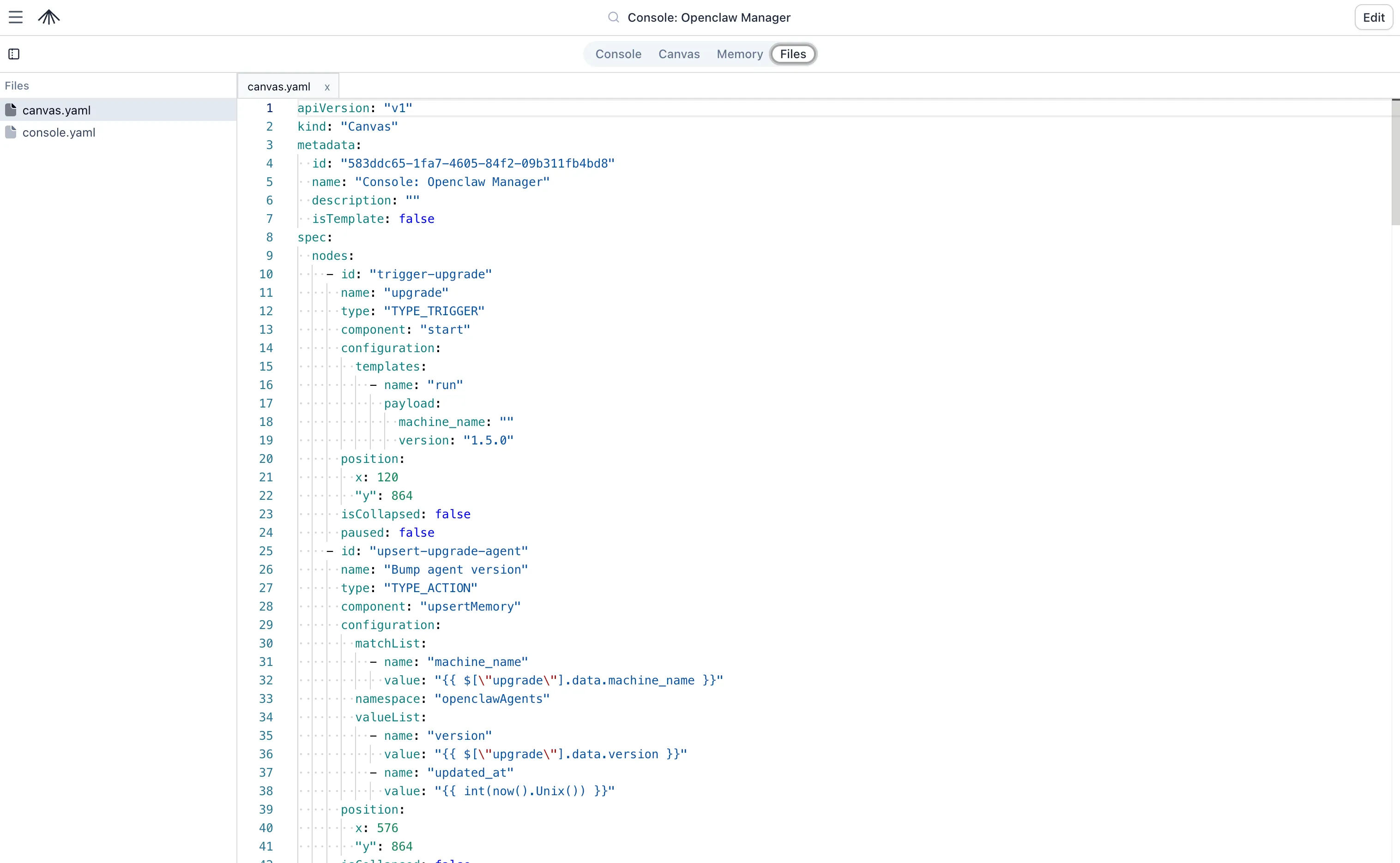
Every app is backed by a git repository. The Files tab is where you view and edit the files that define the app.
What’s in the repository
Section titled “What’s in the repository”Because the app is backed by a standard Git repository, you can store any files you need inside it, such as scripts, READMEs, or custom configuration files.
However, two files have a special meaning to SuperPlane:
| File | Purpose |
|---|---|
canvas.yaml | Workflow graph: nodes, subscriptions, and configuration |
console.yaml | Console layout and panels |
Changes you make in the UI are reflected in these files. Edits in Files follow the same draft and publish flow as on the Canvas and Console.
How files connect to your workflows
Section titled “How files connect to your workflows”The files in your repository are not just static configuration—they interact with the other core components of your SuperPlane app.
AI Agent
Section titled “AI Agent”The built-in AI agent has direct access to your app’s repository. When you ask the agent to build or troubleshoot a workflow, it can:
- Read files: Inspect
README.md, documentation, or custom scripts to gain context about your app. - Write files: Create new scripts, update documentation, or modify configuration files.
- Manage configuration: Update
canvas.yamlandconsole.yamldirectly to build workflows and dashboards.
Runners
Section titled “Runners”Runners execute shell commands and scripts on remote machines. You can store complex scripts (e.g., a 500-line Python data processing script or a Bash deployment script) directly in your app’s repository instead of pasting them into the Canvas UI.
To use a repository script in a runner:
- Store the script in your app’s repository (e.g.,
scripts/process-data.py). - In your Runner node’s Setup commands, clone the repository.
- In the Runner node’s Script field, simply execute the file:
python scripts/process-data.py.
This approach keeps your Canvas clean, allows you to version-control your scripts, and lets you use standard IDEs and linters for your code.
Files tab
Section titled “Files tab”Open Files from the app header (alongside Canvas, Console, and Memory).
- View and edit files in the browser
- Export files for review or backup
- Import YAML to replace the graph or console in one update (console import is replace-all)
Inspect app files with the SuperPlane CLI. See SuperPlane CLI for canvas.yaml and
console.yaml commands on a given app.